
Reset to Factory Settings
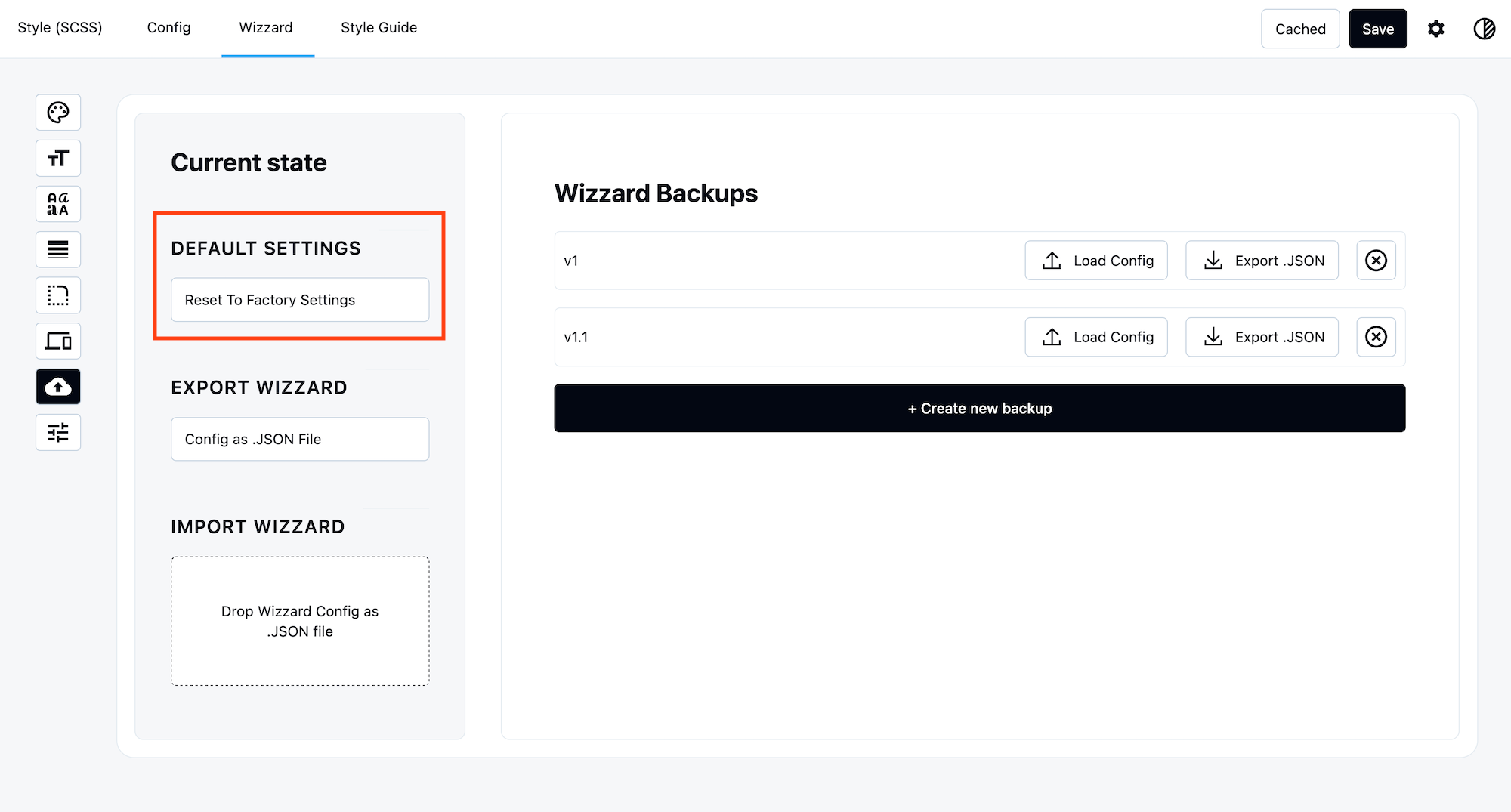
Click “Reset to Factory Settings” → Restores all Wizard tabs to default state.
What gets reset:
- All colors, font sizes, spacing, border radius, font families, breakpoints
- Returns to clean slate (as if you just activated Wizard)
Use when: Starting fresh or fixing broken configurations.
Export Current State
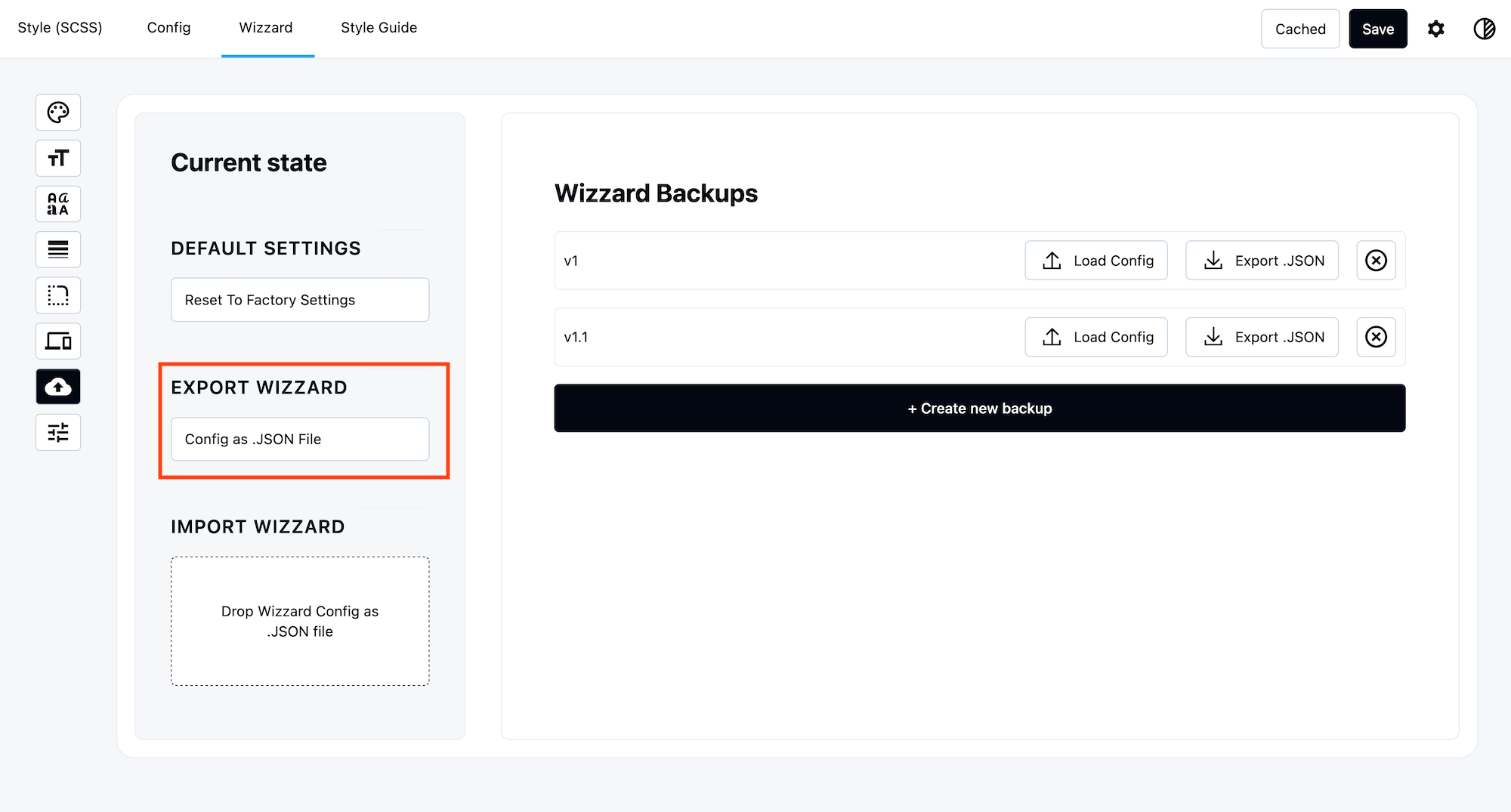
Export as JSON
Click “Export Current State” → Downloads JSON file with all current Wizard settings.
File name: wizzard-backup-[date].json
Contains:
- All active design tokens (colors, spacing, fonts, etc.)
- Current settings and configurations
- Exact snapshot of your Wizard state
Import Wizard State
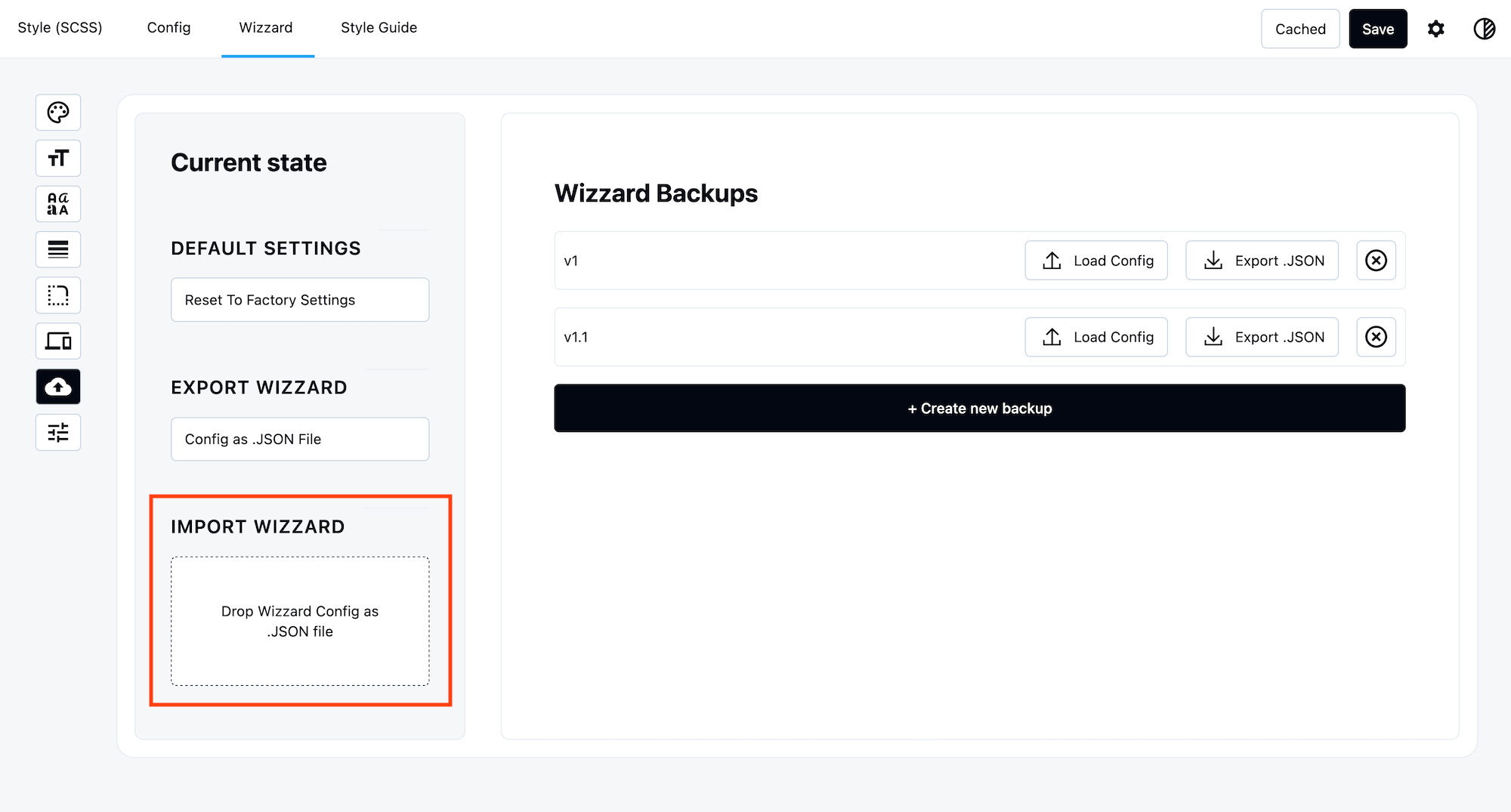
Drag & Drop Import
In Sidebar:
- Drag JSON file onto “Import Wizard” area
- Drop to upload
- Confirm import
Result: All Wizard settings replaced with imported configuration.
Or click to browse:
- Click “Import Wizard”
- Select JSON file
- Confirm import
Manage Backups
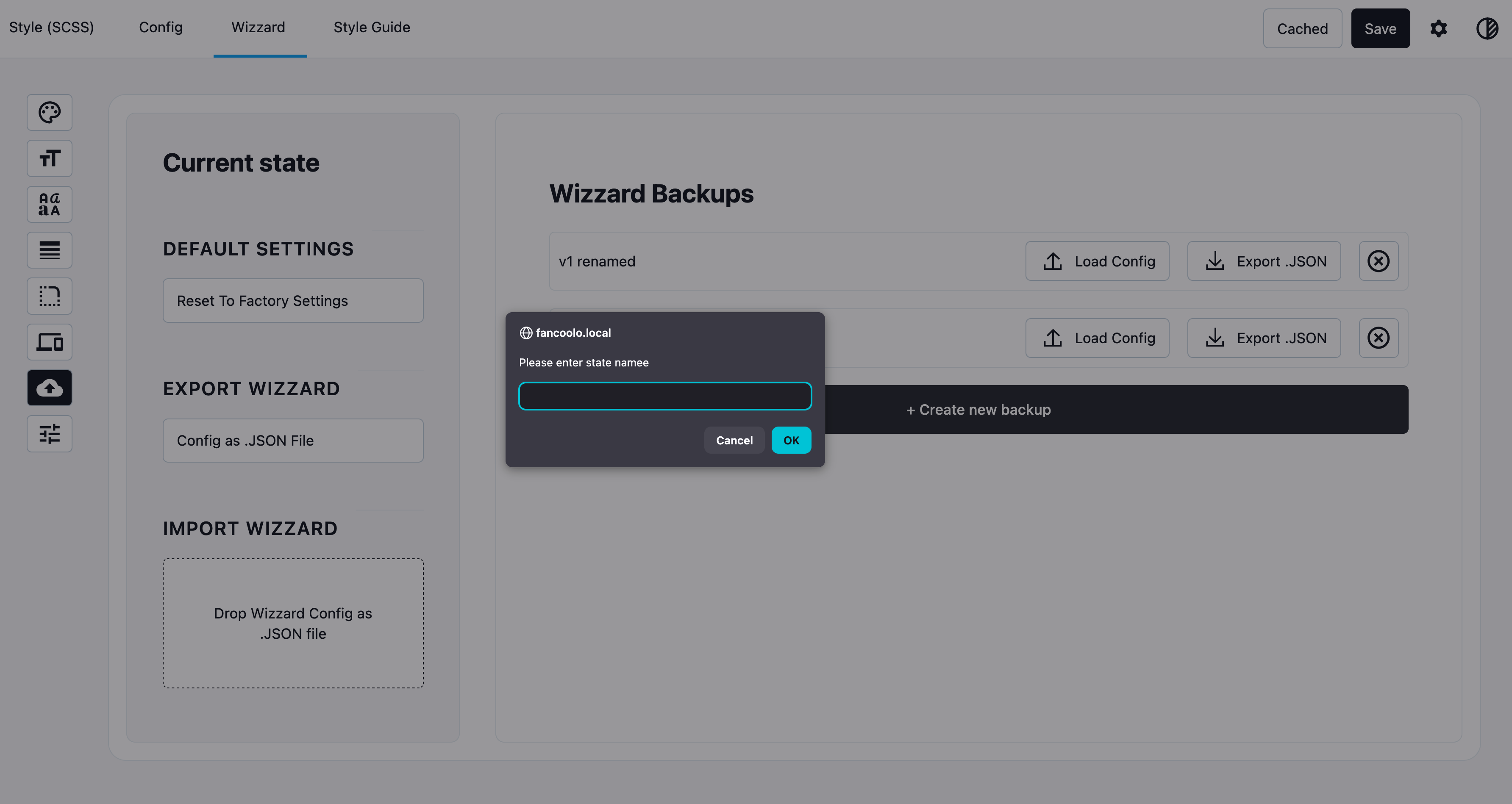
Create Backup
In main area:
- Click “Create Backup”
- Enter backup name (e.g., “Before redesign”)
- Save
Result: Current Wizard state saved to database.
Backup List
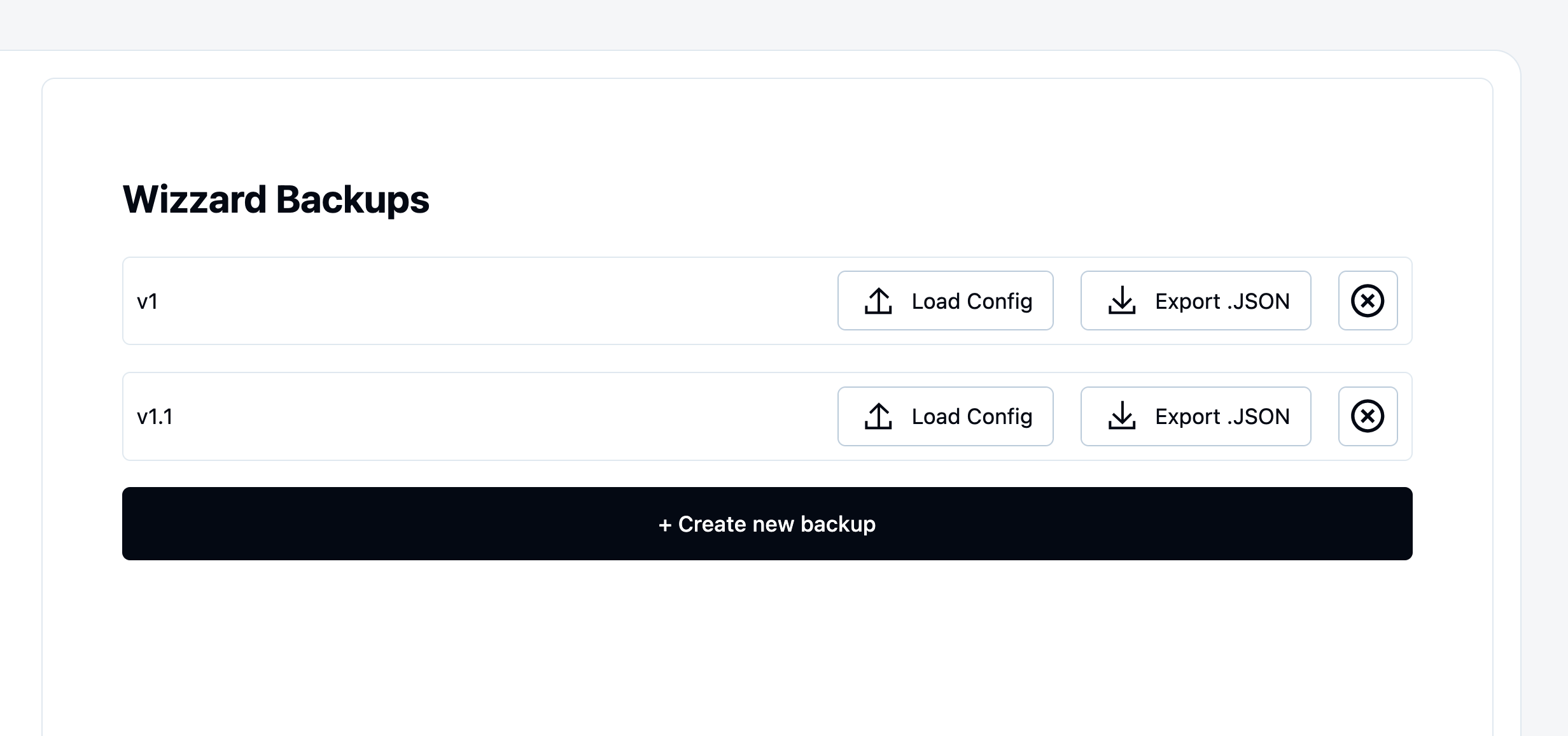
All saved backups appear in the main area:
Each backup shows:
- Backup name
- Creation date
- Actions: Load, Rename, Export, Delete
Backup Actions
Load Backup:
- Click “Load” on backup
- Confirm
- Wizard restored to that backup state
Rename Backup:



- Click “Rename”
- Enter new name
- Save
Export Backup:
- Click “Export”
- Downloads as JSON file
- Share or store externally
Delete Backup:
- Click “Delete”
- Confirm removal
- Backup removed from database