
Already have fonts set up in a block theme, Bricks, or Oxygen? Font Hero can pull them into your Font Hero library so you can manage everything in one place.
Important: In the current UI, “Font Takeover” is a workflow inside the Fonts tab (plus a separate Migration tab for Swiss Knife Pro), not a standalone top-level tab.
Why Take Over Existing Fonts?
When fonts are added directly in a theme or builder, they usually work, but they are not centrally managed. Font Takeover gives you a clean way to bring them into Font Hero so your typography setup is easier to maintain.
Font Takeover lets you:
- Import fonts you’ve already added through your theme or builder
- Optimize them with Font Hero’s loading options (preload, font-display, optional subset splitting)
- Manage all your fonts in one place, regardless of where they came from
Think of it as upgrading your existing fonts from basic to optimized — same fonts, better performance.
Supported Sources
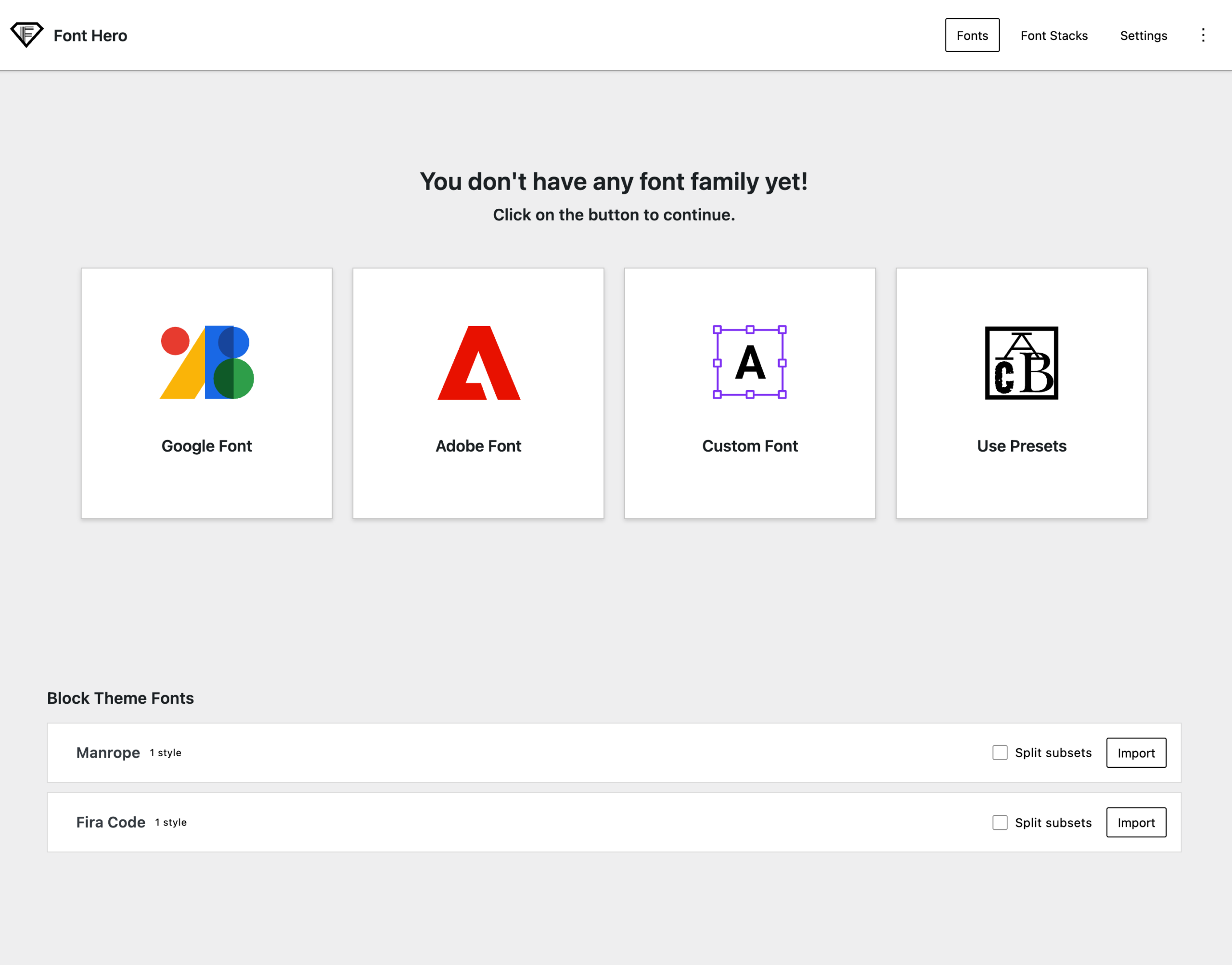
Block Theme Fonts (Gutenberg)
If you’re using a block theme (like Twenty Twenty-Four or any theme with a theme.json file), your theme likely registers fonts through WordPress’s built-in font system. Font Hero can detect and import these.
Bricks Builder
If you’ve added custom fonts through Bricks Builder’s font management, Font Hero can pull them in.
Oxygen Builder
Custom fonts registered in Oxygen (version 6+) can be imported as well.
How to Import Existing Fonts
- Go to Font Hero > Fonts
- Scroll below your font library to the takeover sections:
- Block Theme Fonts
- Bricks Builder Fonts
- Oxygen 6 Builder Fonts
- Font Hero automatically lists importable fonts for each detected source
- (Optional) Enable Split subsets for a font if you want Font Hero to create unicode subsets during import
- Click Import
The fonts are copied into Font Hero’s library. Your original fonts in the theme or builder are not modified or deleted.
What Happens After Import
Once imported, the fonts appear in your Fonts tab like any other font. You can now:
- Enable preloading for your most important fonts
- Set font-display to control loading behavior
- Disable unused weights you don’t actually need
- Assign CSS selectors for specific usage
Legacy Plugin Migration
If you’re coming from Swiss Knife Pro, Font Hero can migrate your existing font library:
- Open Font Hero and go to the Migration tab (it appears only when a supported migration source is detected)
- Click Migrate Fonts
- Font Hero copies fonts and faces into its own tables
This is a copy/migration step. Your old plugin’s data is not removed automatically, so you can verify the site before cleaning up.
Tips
- Import first, then optimize. Get the fonts into Font Hero, then go through each one and adjust settings.
- Disable what you don’t need. Themes and builders sometimes load more font weights than necessary. After importing, disable the ones you’re not using.
- Check your site after importing. Make sure all text still displays correctly. If you see any font changes, it usually means a weight or style mapping needs adjustment.
- You can keep using your builder’s font picker. Font Hero integrations still register imported fonts into supported builders/themes.