
Note: Video is done before updated Font Hero UI. Never the less it’s a decent guild in the Adobe fonts admin panel.
If you have an Adobe Creative Cloud subscription, you can connect your Adobe Fonts web project to Font Hero. This lets you use premium Adobe fonts on your WordPress site and manage them alongside your other fonts.
How Adobe Fonts Work
Adobe Fonts (formerly called Typekit) are hosted on Adobe’s servers. Unlike custom or Google fonts, the font files are not downloaded to your server. Instead, Font Hero loads a small CSS file from Adobe that brings in your selected fonts.
This means:
- You need an active Adobe Creative Cloud subscription
- Fonts are served from Adobe’s CDN (fast and reliable)
- Your Adobe web project must include the fonts you want to use
Getting Your Web Project ID
Before you can connect Adobe Fonts to Font Hero, you need your Web Project ID:
- Go to fonts.adobe.com
- Sign in with your Adobe account
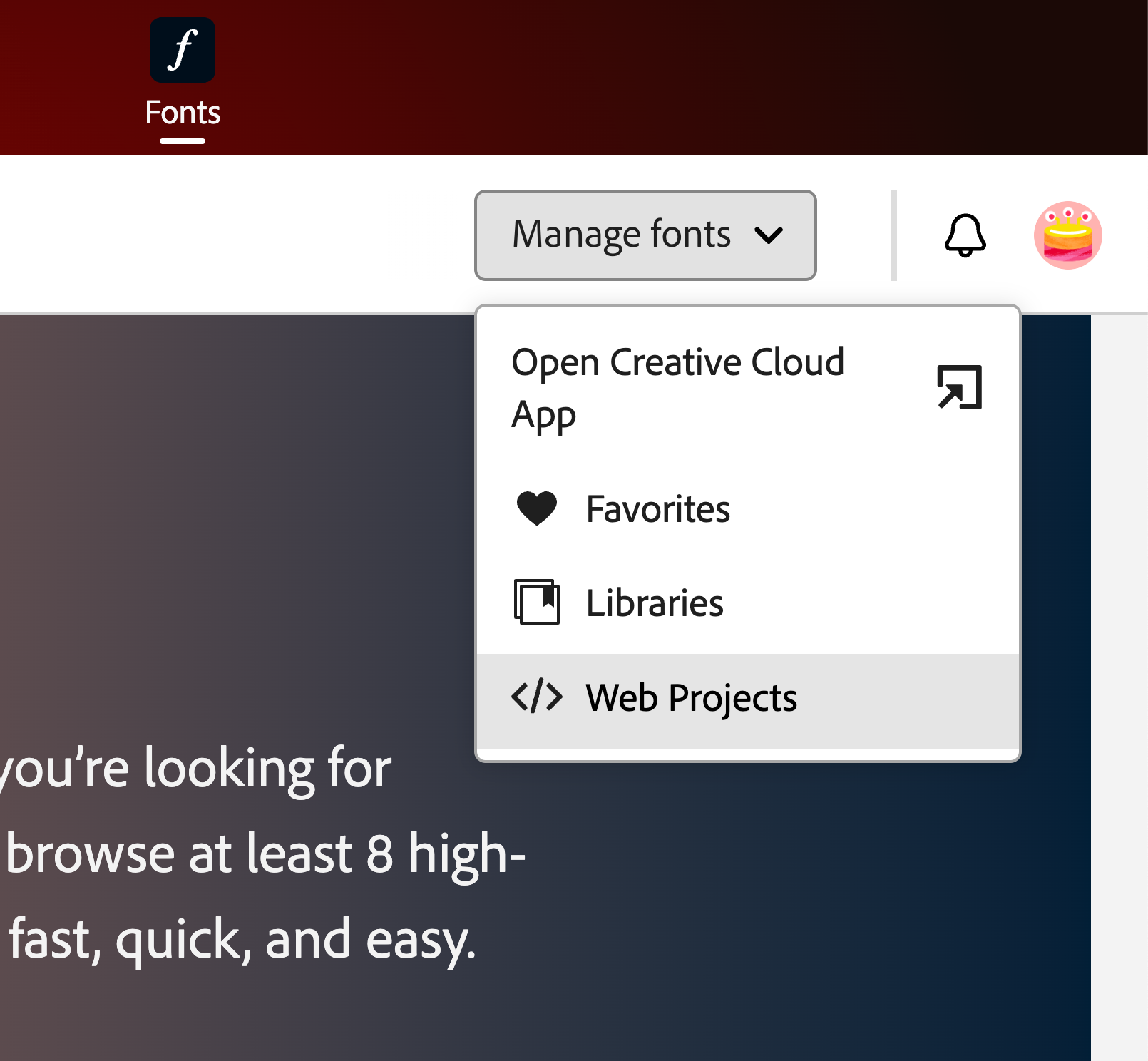
- Go to Web Projects (click your name in the top right, then “Web Projects”)
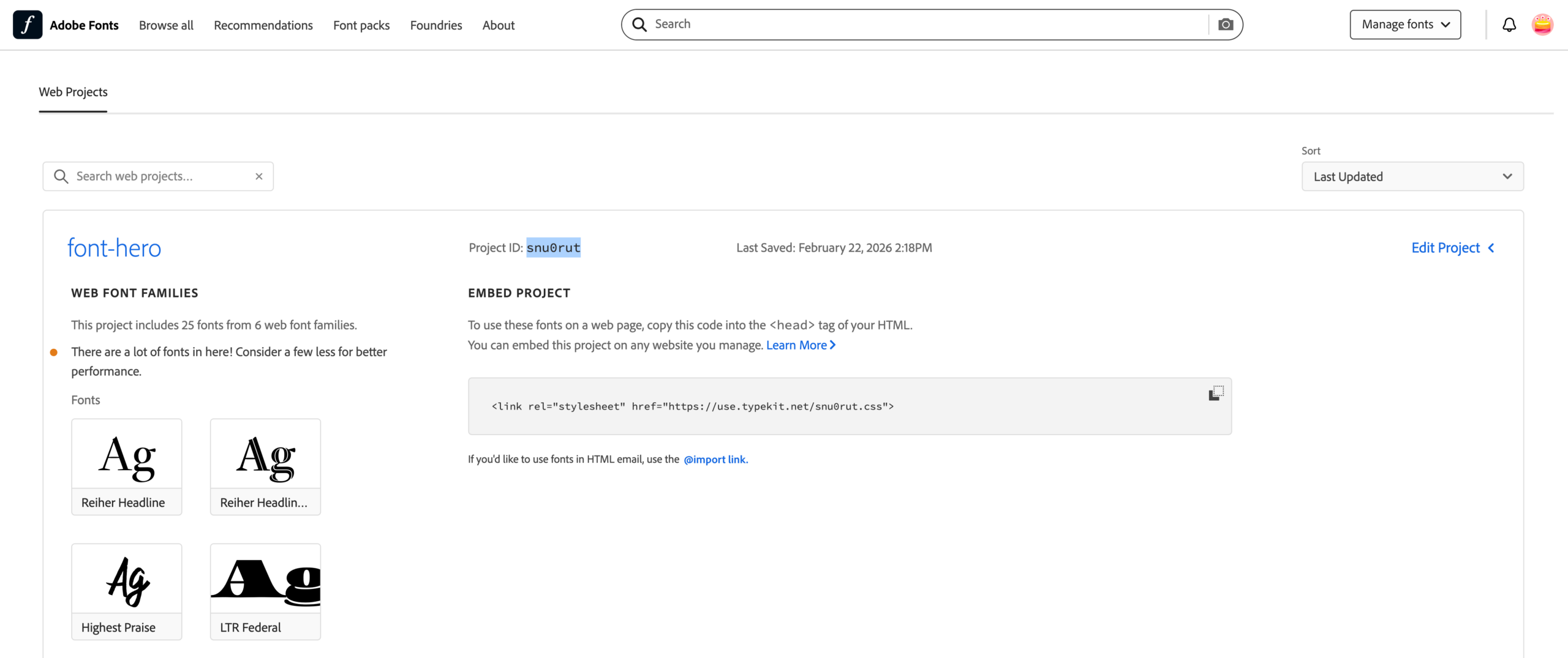
- Find the project that contains your fonts
- Copy the Project ID — it’s a 7-character code (e.g.,
snu0rut)
Note: If you don’t have a web project yet, create one on Adobe’s site and add the fonts you want to use.
Importing Adobe Fonts
- Go to Font Hero > Fonts
- Click Add Font
- Choose Adobe Font
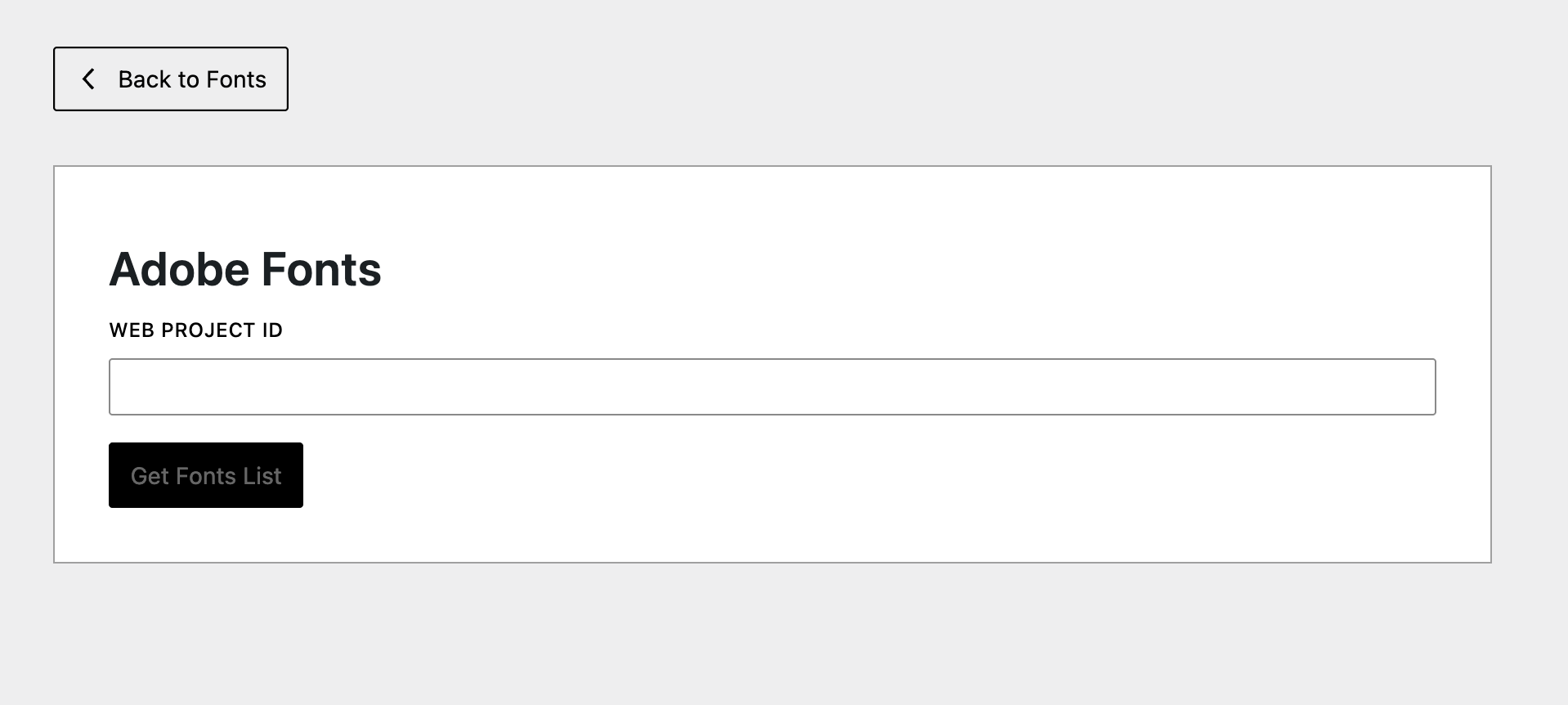
- Paste your Web Project ID in the field
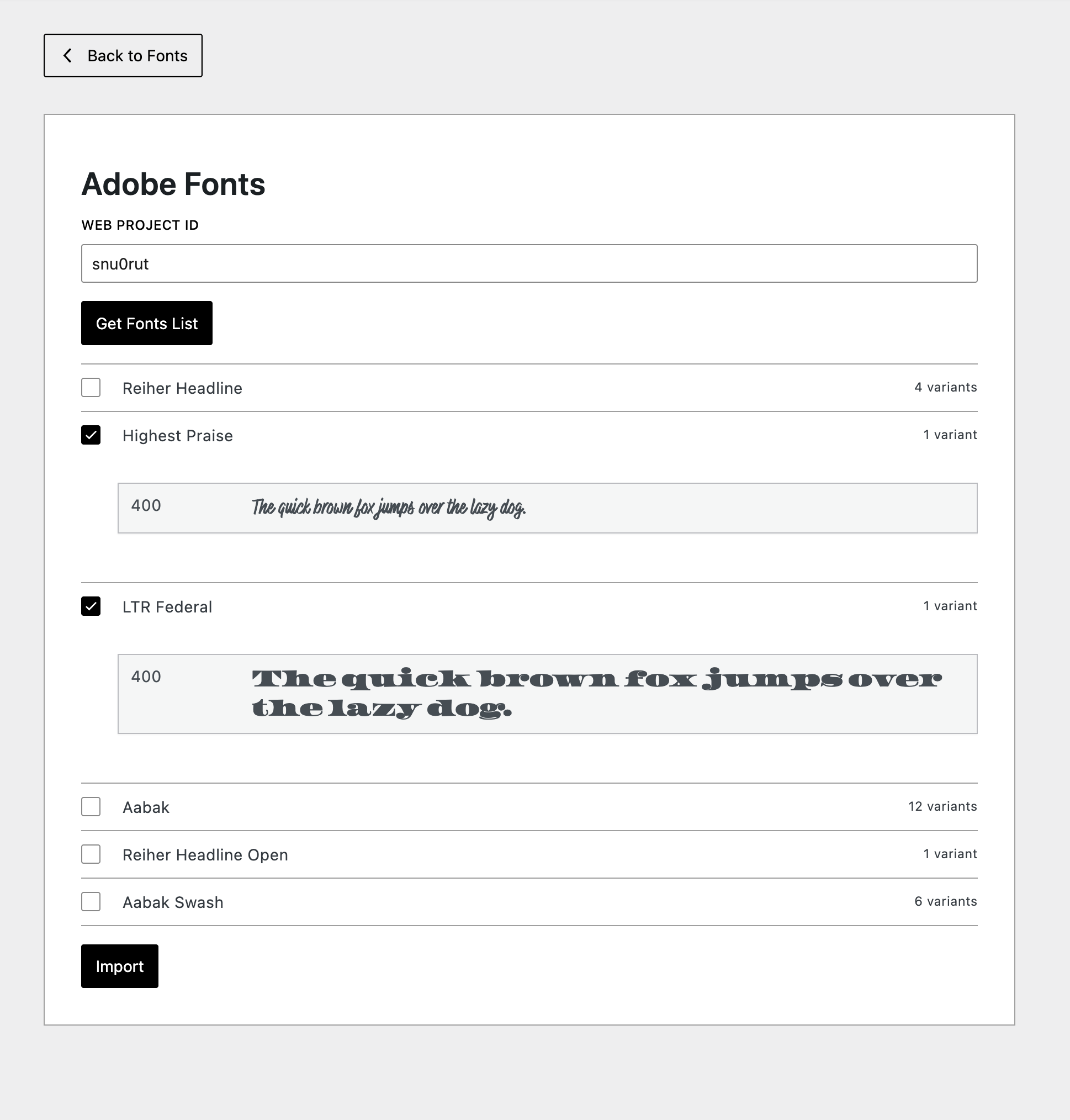
- Click Get Fonts List — Font Hero fetches the families from your Adobe project
- Select the fonts you want to import
- Click Import
Font Hero will register the fonts and start loading the Adobe CSS on your site automatically.
What You Get After Import
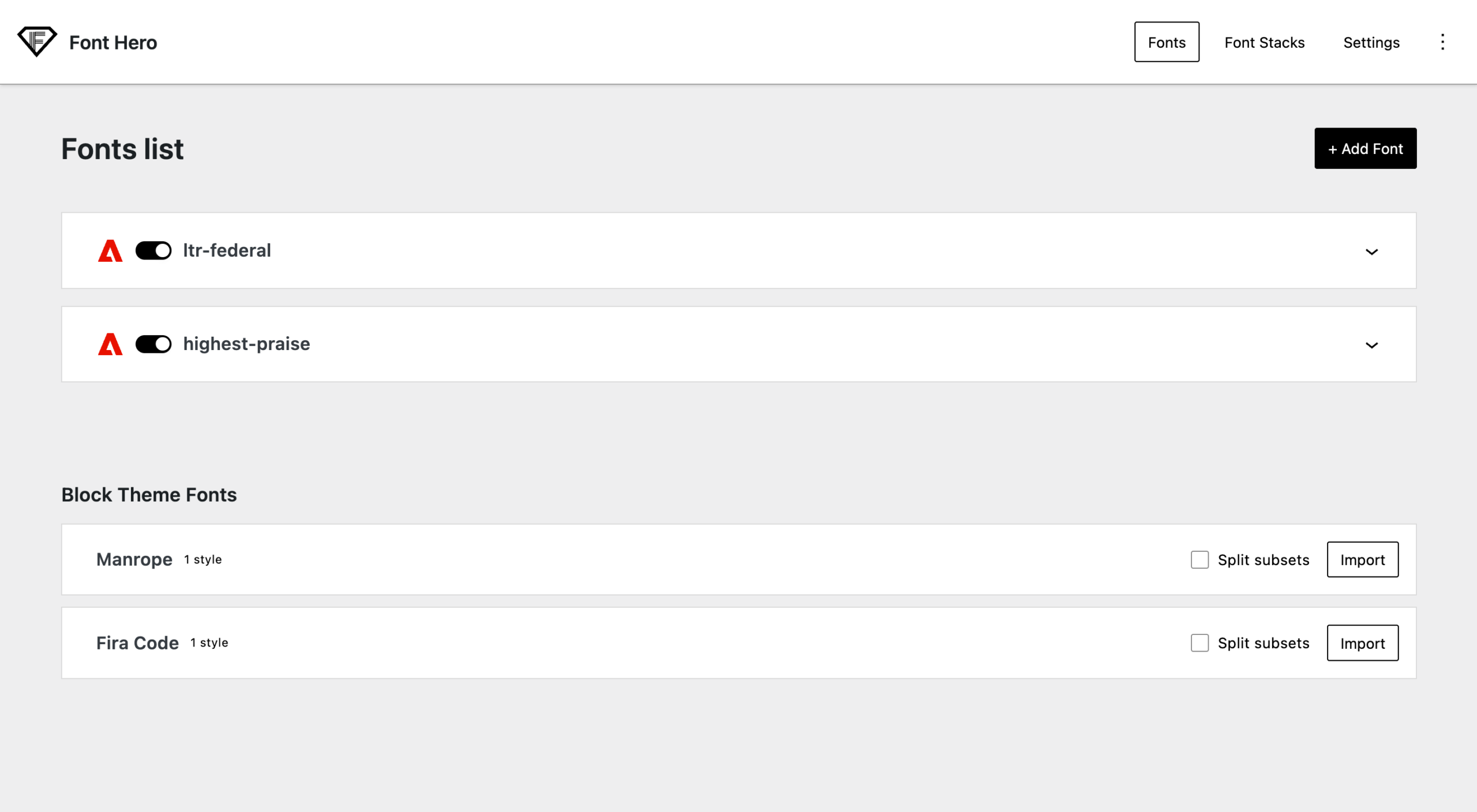
Your Adobe fonts appear in the Fonts tab alongside your other fonts. You can:
- Enable or disable them
- See their available weights and styles
- Use them in any supported builder or theme
Since Adobe fonts are served from Adobe’s servers, local-file controls (file formats, local uploads, subset downloads) don’t apply here. Font Hero registers the font families and Adobe handles the actual delivery.
Limitations
- Requires internet connection — Since fonts are served from Adobe’s CDN, they won’t load if your server can’t reach Adobe
- Subscription required — If your Adobe subscription expires, the fonts will stop loading
- No local hosting — Font files stay on Adobe’s servers, you can’t download them for local hosting
- Project limits — Adobe’s free tier has limits on the number of web projects and fonts
Troubleshooting
Fonts not showing after import?
- Make sure your Web Project ID is correct (7 characters)
- Check that the fonts are published in your Adobe web project
- Visit your site in an incognito window to rule out caching issues
Fonts stopped working?
- Verify your Adobe Creative Cloud subscription is active
- Check that the web project hasn’t been deleted or modified on Adobe’s site