
Font Stacks let you create named fallback chains — an ordered list of fonts that the browser tries one by one until it finds one that’s available. This gives you precise control over how text looks at every stage of page loading.
Why Font Stacks Matter
When a visitor opens your site, the custom font doesn’t load instantly. There’s always a brief moment where the browser needs a backup plan. Without a font stack, the browser picks whatever default it wants — and that can look very different across devices.
With a font stack, you decide exactly which fonts the browser should try:
Montserrat → Helvetica Neue → Arial → sans-serifIf Montserrat hasn’t loaded yet, the browser shows Helvetica Neue (available on Mac). If that’s not available, it tries Arial (available everywhere). As a last resort, it uses the system’s default sans-serif font.
The result: your site looks intentional at every moment, not just after fonts finish loading.
No other WordPress plugin offers this level of control.
How to Create a Font Stack
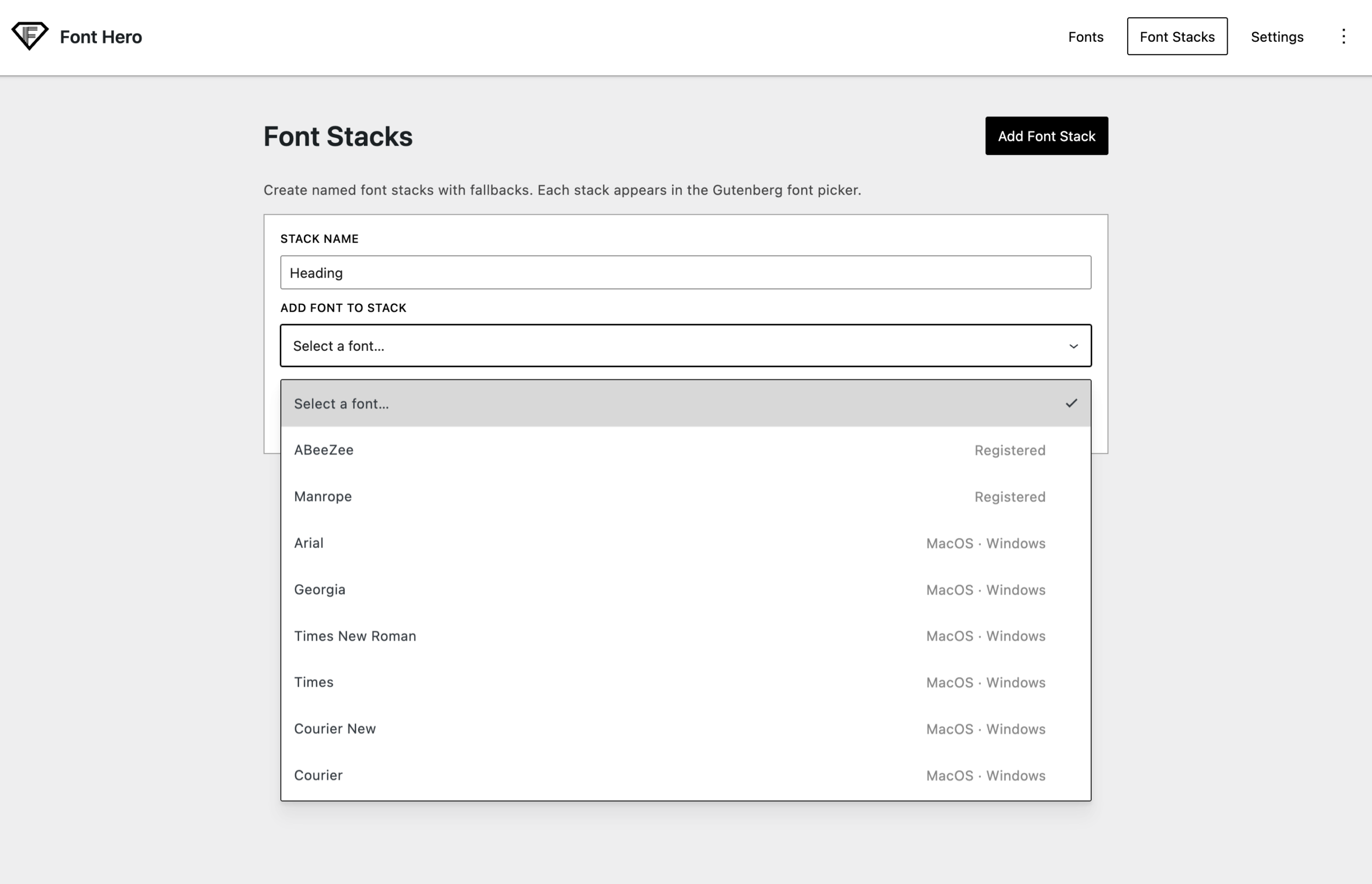
- Go to Font Hero > Font Stacks
- Click Add Font Stack
- Give your stack a name (e.g., “Heading Font” or “Body Text”)
- Use the Add font to stack dropdown to add fonts one by one
- Arrange the order by dragging fonts up or down
Your stack appears as a font family option in the Gutenberg block editor.
Using Presets
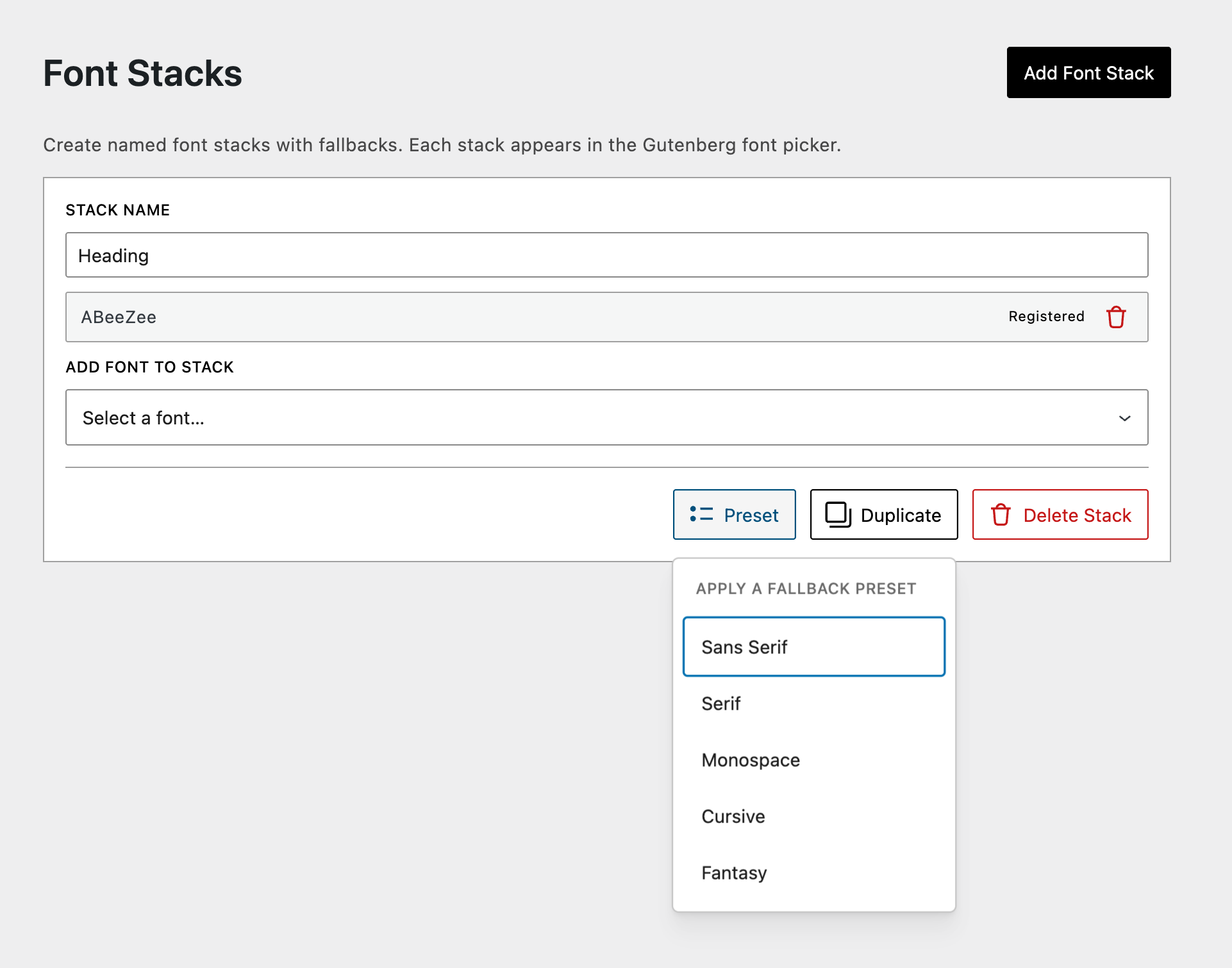
Don’t want to build a stack from scratch? Click Preset and choose from five ready-made fallback chains:
| Preset | Fonts Included |
|---|---|
| **Sans Serif** | system-ui, Segoe UI, Helvetica Neue, Arial, Noto Sans, Liberation Sans, sans-serif |
| **Serif** | Georgia, Cambria, Times New Roman, Times, serif |
| **Monospace** | ui-monospace, Consolas, Courier New, Courier, monospace |
| **Cursive** | Segoe Script, Brush Script MT, Apple Chancery, Lucida Handwriting, cursive |
| **Fantasy** | Copperplate, Copperplate Gothic Light, Papyrus, fantasy |
Mixing Font Hero Fonts with System Fonts
A font stack can include both:
- Registered fonts — Fonts you’ve uploaded or imported through Font Hero (marked as “Registered”)
- System fonts — Fonts that come pre-installed on computers and phones (marked with their platform: MacOS, Windows, or Generic)
A good stack puts your custom font first, followed by similar-looking system fonts, and ends with a generic family:
Your Custom Font → Similar System Font → Generic FamilyFor example:
Inter → Helvetica Neue → Arial → sans-serif
Using Font Stacks in Gutenberg
Once you create a font stack, it shows up in the Gutenberg font picker just like any regular font. You can apply it to:
- Headings
- Paragraphs
- Buttons
- Any block that supports font selection
The entire fallback chain is applied automatically — you just pick the stack name.
Managing Font Stacks
- Drag to reorder — Grab the handle on the left side of any font to move it up or down in the stack
- Remove a font — Click the trash icon next to any font in the stack
- Duplicate — Create a copy of an existing stack to use as a starting point
- Delete — Remove a stack entirely
Changes are saved automatically.
Tips
- Always end with a generic family. Every stack should have
sans-serif,serif,monospace,cursive, orfantasyas the last entry. This is your ultimate safety net. - Put your custom font first. The browser tries fonts in order, so your preferred font goes at the top.
- Use system fonts that look similar. If your custom font is a clean sans-serif, follow it with Helvetica Neue and Arial — not Times New Roman.
- Cover both Mac and Windows. Helvetica Neue is a Mac font, Segoe UI is a Windows font. Include both for consistent cross-platform results.
- Keep stacks short. 3–5 fonts is usually enough. The browser only needs a few good options.