
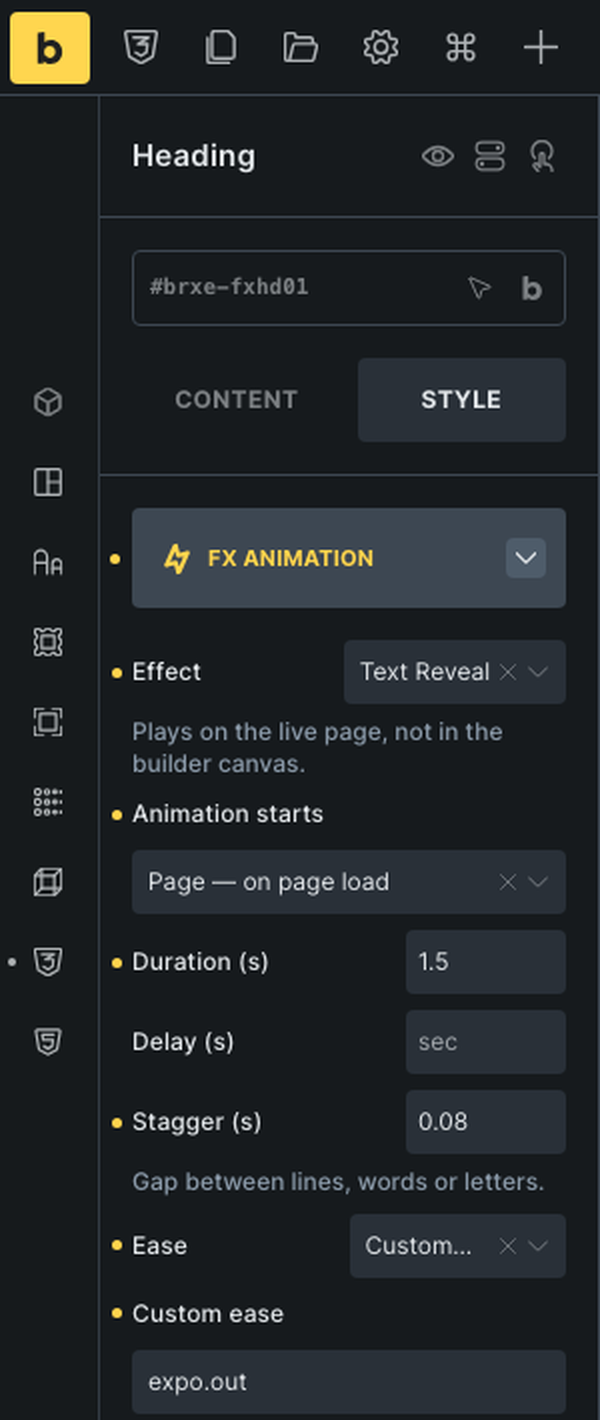
With Bricks active as the theme, every element gets an FX Animation group in its Style tab (the FX icon), after Bricks' own CSS and Attributes groups. It has the same fields as the block editor panel, and Bricks saves them with the element like any other setting — no separate save step.
Quick access
The group is also in Bricks' quick-access icon rail — the column of icons left of the element panel. The FX Animation item sits last, below Attributes. Clicking it opens the Style tab at the FX Animation group, just like Bricks' own items, and a dot next to it means the selected element already has FX settings. It has no Cmd/Ctrl + Alt + number shortcut; those only cover Bricks' own items.
Copy and paste FX
To reuse an animation, right-click an element — in the canvas or in the Structure panel — and choose Copy FX, then right-click another element and choose Paste FX. Both rows sit right after Bricks' own Paste row.
- Paste FX replaces the target's FX settings with the copied ones (settings the copy doesn't have are cleared). With several elements selected, it pastes into all of them.
- The copy is kept in your browser, so you can paste it on another page or in another browser tab.
- Copy FX is greyed out on an element without FX settings, and Paste FX until something has been copied.
- A paste is a normal builder change: Cmd/Ctrl + Z undoes it, and the page needs saving like any other edit.
Fields
- Effect — pick one of the FX effects. Clear it (the × in the field) to remove the animation.
- Animation starts — Item (the element scrolls into view; the default), Trigger (bare class, scoped by the section selector — Bricks' Section element renders a
<section>) or Page (on page load). Scroll-linked effects (Tilt In, Parallax) have no choice here. Draw SVG adds Scrub, which draws the paths as you scroll. - Duration, Delay — seconds.
- Stagger — seconds between lines, words or letters; text effects only.
- Ease — a preset, or Custom… to type any GSAP ease.
- Start position — a ScrollTrigger start such as
top 70%; shown for scroll-triggered animations, with the site-wide default as placeholder. - Y shift — Parallax only.
- Scrub smoothing — Draw SVG with Scrub only.
What it writes to the front end
The group becomes the same fx-* classes the block editor panel writes (for example fx-text-reveal-pl fx-duration-[1.5] fx-stagger-[0.08]), added to the element's root tag next to its other classes — see Effects Overview and Modifier Classes for what each class does.
Typing classes into Style → CSS → CSS classes by hand keeps working exactly as before — the FX Animation group and typed classes are two ways of writing the same thing.
Inside the builder
FX stands down inside the Bricks builder: no animations, no FOUC-hiding CSS and no GSAP/fx.js scripts load in the builder window or its canvas, so elements stay visible and selectable while you work. The canvas doesn't preview the animation either — use Bricks' own Preview or the live page to see it play.
Hiding the panel
Turn off FX panel in Bricks under Settings → Page builders (shown only when Bricks is the active theme) to remove the FX Animation group from every element's Style tab, along with its quick-access item and the Copy FX / Paste FX menu rows. This only hides the controls — animations already set on elements keep playing on the front end, and their values come back exactly as they were when the panel is turned on again.