
When FX panel in the block sidebar is on (the default) under the Settings tab, every block gets an "FX Animation" panel in its settings sidebar — pick an effect and its timing from dropdowns instead of typing class names.
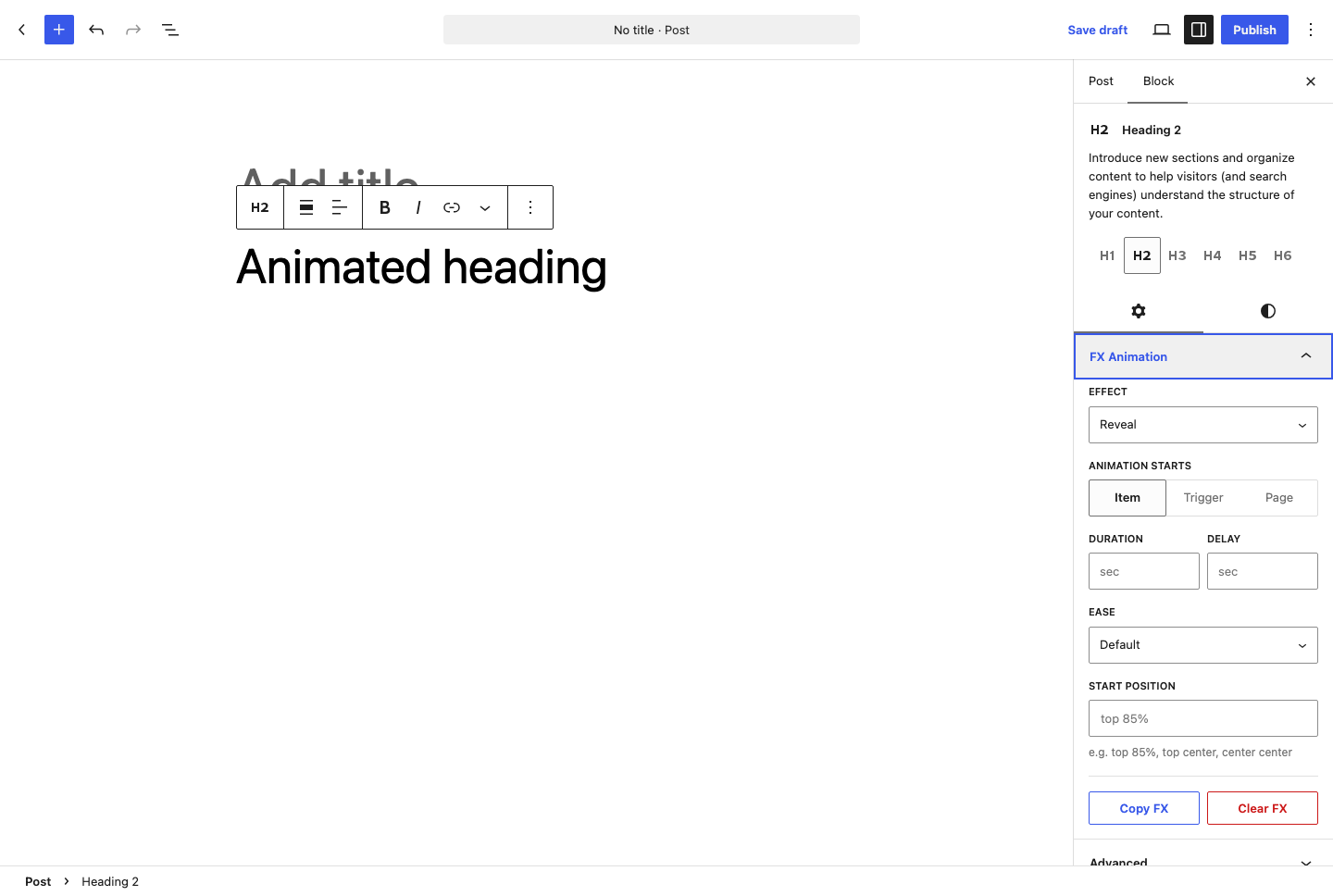
What's in the panel
- Effect — a dropdown of all 15 effects, or "None".
- Animation starts — Item (
-st), Trigger (bare, section-triggered) or Page (-pl); Draw SVG also offers Scrub. - Duration / Delay — number fields, in seconds.
- Ease — a dropdown of common GSAP easing names.
- Start position — a text field (e.g.
top 85%,top center), shown for scroll-triggered effects. - Y shift — shown only for Parallax.
The panel reads and writes the block's own className attribute — it doesn't add a separate custom attribute, so classes it writes are the same ones documented on each effect's page, and any class you type by hand in Advanced → Additional CSS class(es) shows up back in the panel.
Copy / Paste FX animation
Once an effect is set, Copy FX (in the panel, or via the block's options menu) stores the effect, trigger and modifiers in your browser. Paste FX on another block applies the same configuration instantly — a fast way to give several blocks matching timing. Clear FX removes the FX classes only, leaving any other classes on the block untouched.
If the panel doesn't appear
Check that FX panel in the block sidebar is switched on under Settings, and that a block is selected — the panel only shows for the currently selected block.