
This tutorial will guide you through the process of creating a new GitHub repository for a WordPress plugin called “Info Block,” which allows you to distribute your custom block across various websites using GitHub and Self-Hoster plugin integration.
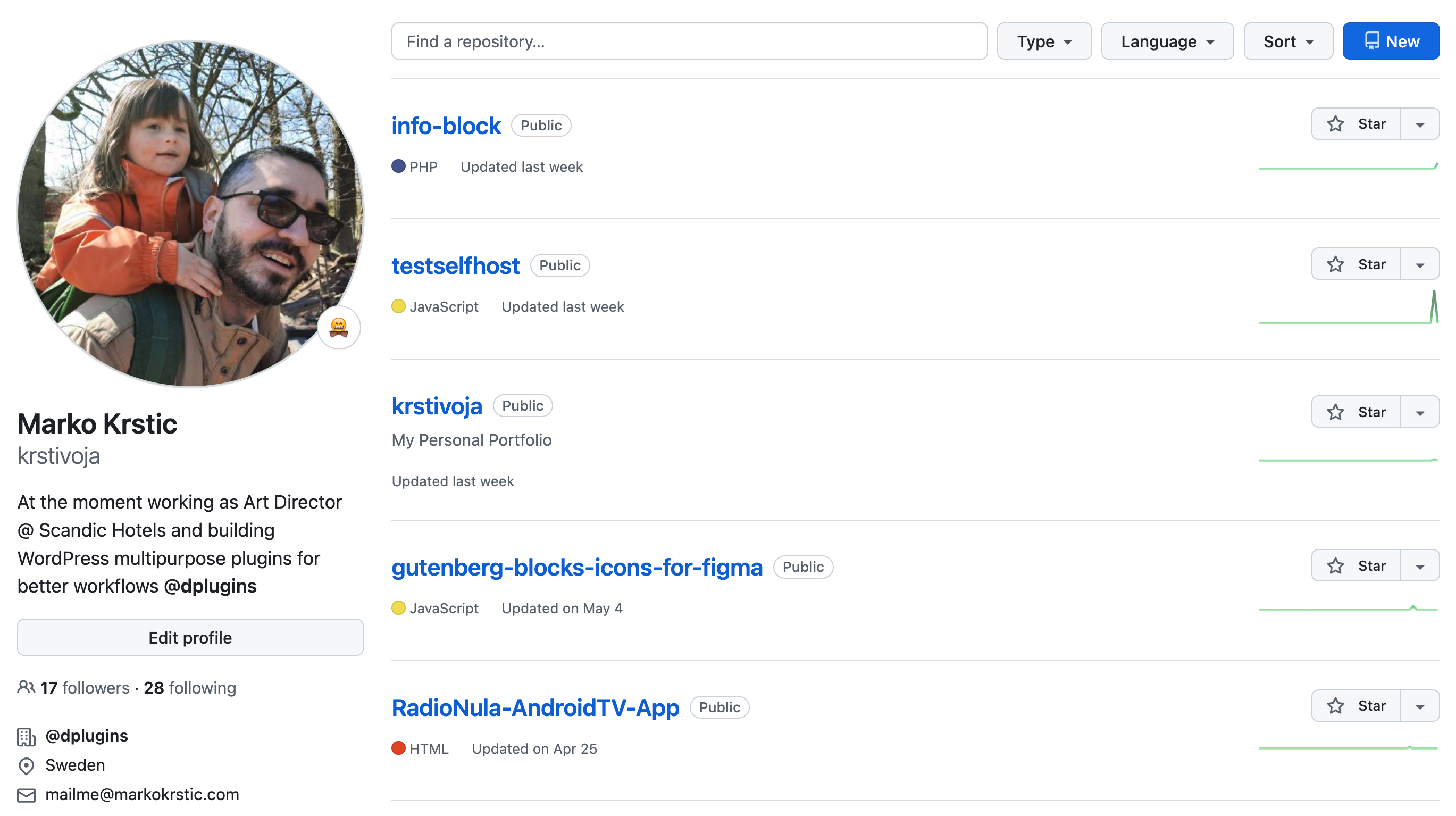
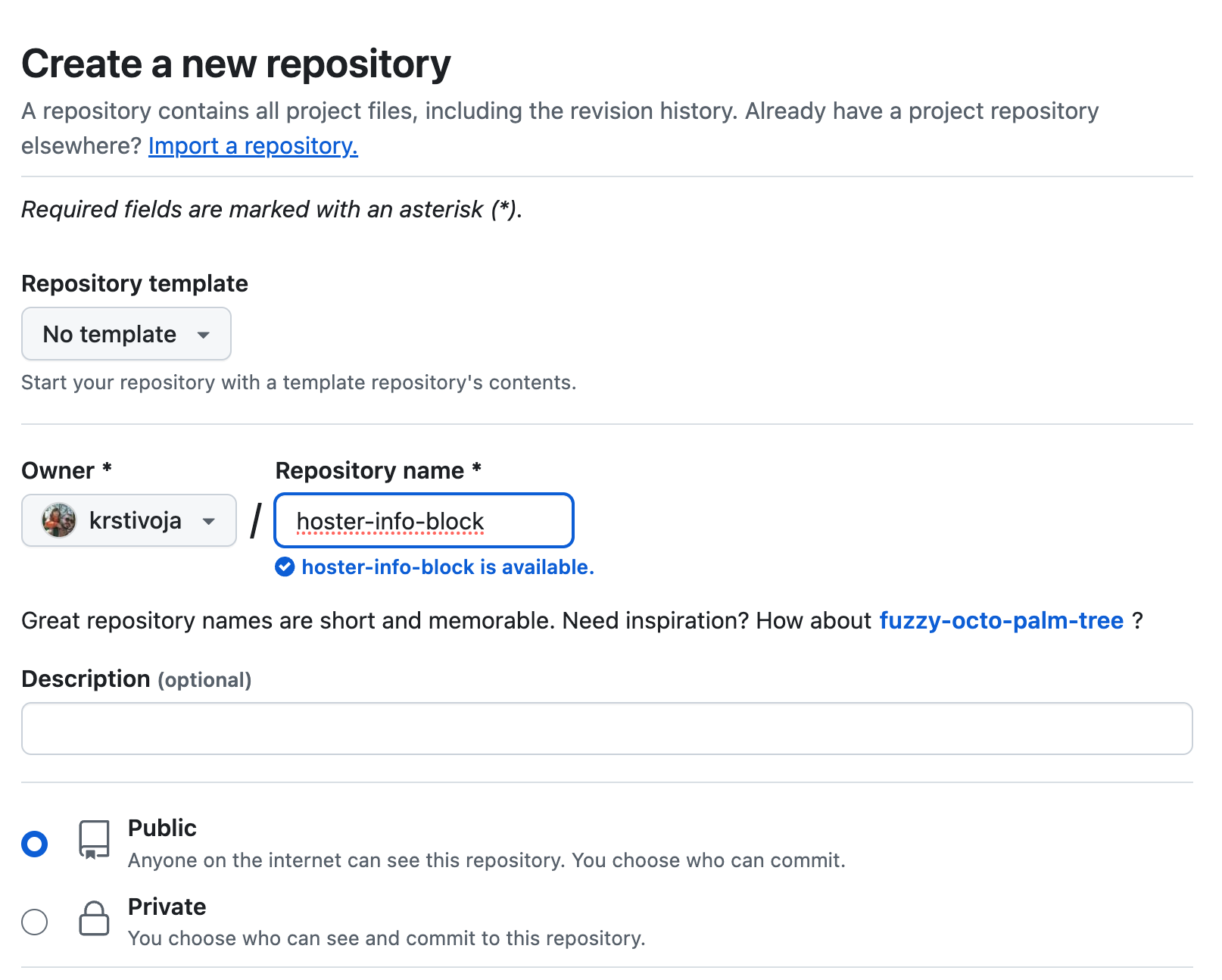
Create GitHub Repository
- Give it a name
- Choose if repository needs to be:
- Public – Everyone can see it
- Private – Only you can see it after you login
Create Gutenberg block
Open a terminal and prepare your plugin directory:
- Drag your plugin folder into the terminal to set the working directory.
- npx @wordpress/create-block@latest hoster-info-block
Exclude Unnecessary Files from GitHub Repo
Configure .gitignore to exclude node modules and other unnecessary files.
- In your repository, create a
.gitignorefile and add entries fornode_modules/, and other directories/files that should not be tracked by Git. - Commit the changes to
.gitignore.
GitHub Actions for Automatic Releases
.gitignore
plugin-root-file.php
├── assets/
│ └── style.css
├── inc/
│ └── updater.php
└── .github/
└── workflows/
└── release.yml
```**Create GitHub workflows for automated releases:**
- In your GitHub repository, navigate to the ‘Actions’ tab and set up a new workflow.
- Configure the workflow to handle build processes, such as compiling code or packaging the release.
- Include steps to tag each release, which will trigger the workflow to build and publish your plugin.
<div class="dp-warning-banner dp-banner"><div class="dp-banner__header"><svg fill="#1f1f1f" height="24px" viewbox="0 -960 960 960" width="24px" xmlns="http://www.w3.org/2000/svg"><path d="m40-120 440-760 440 760H40Zm138-80h604L480-720 178-200Zm302-40q17 0 28.5-11.5T520-280q0-17-11.5-28.5T480-320q-17 0-28.5 11.5T440-280q0 17 11.5 28.5T480-240Zm-40-120h80v-200h-80v200Zm40-100Z"></path></svg>Warning
</div><div class="dp-banner__content">It’s important to create .gitignore file even empty one.
But you should add at least add **`**/.DS_Store`** for Mac.
</div></div>
### GitHub Secrets for Authentication

**Create a GitHub token for automation:**
- Go to your GitHub settings, navigate to ‘Developer settings’, and then to ‘Personal access tokens’.
[**https://github.com/settings/tokens**](https://github.com/settings/tokens)
- Generate a new token with the necessary permissions (e.g., repo, workflow) and name it appropriately.
- Save this token as a secret in your GitHub repository under ‘Settings’ > ‘Secrets’. This token will authenticate GitHub actions to perform tasks like pushing updates.
**Add token to the repository**
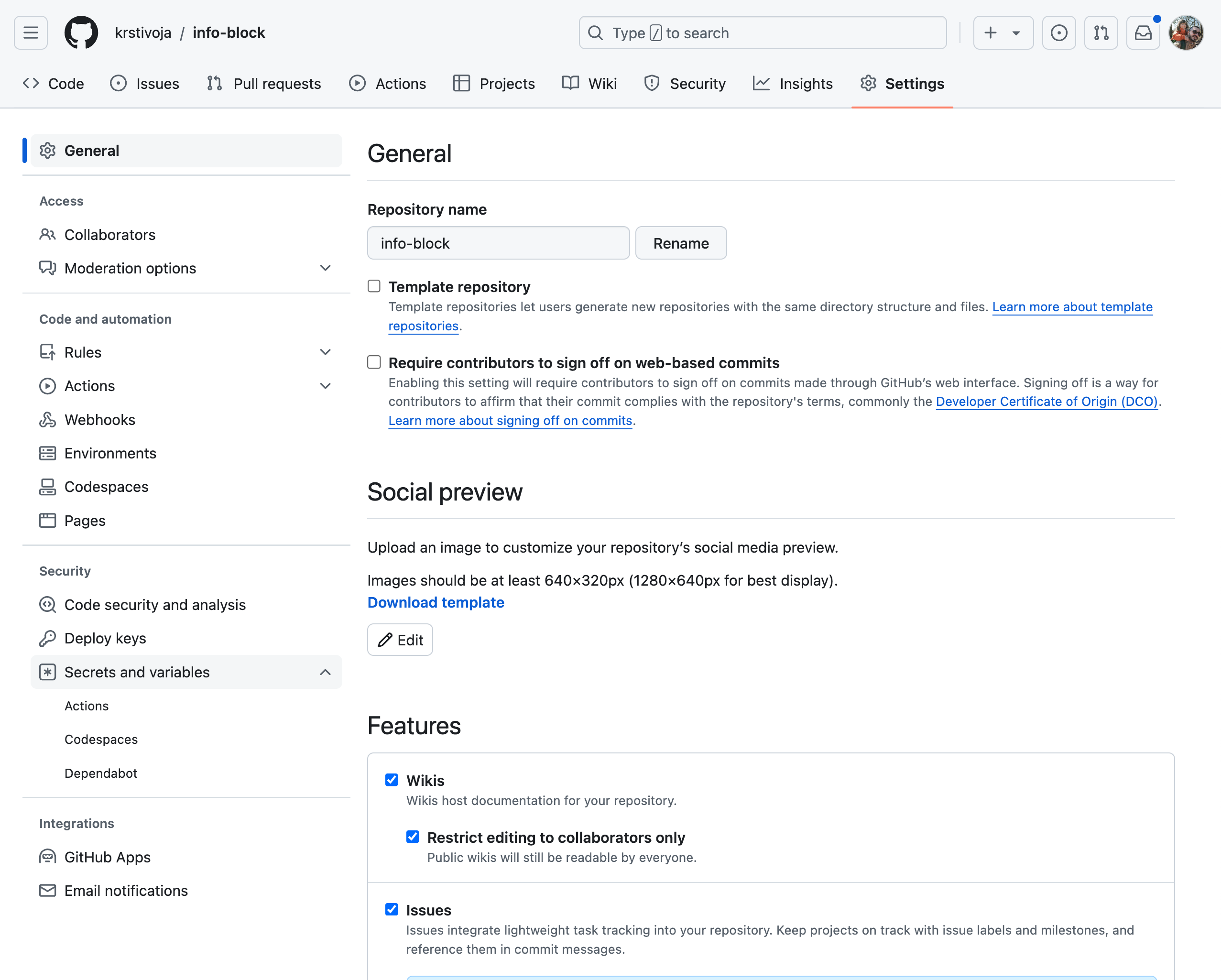
Under repo > Settings on the left side find Secrets and variables and click on the “Actions”
Then click on the New repository secret
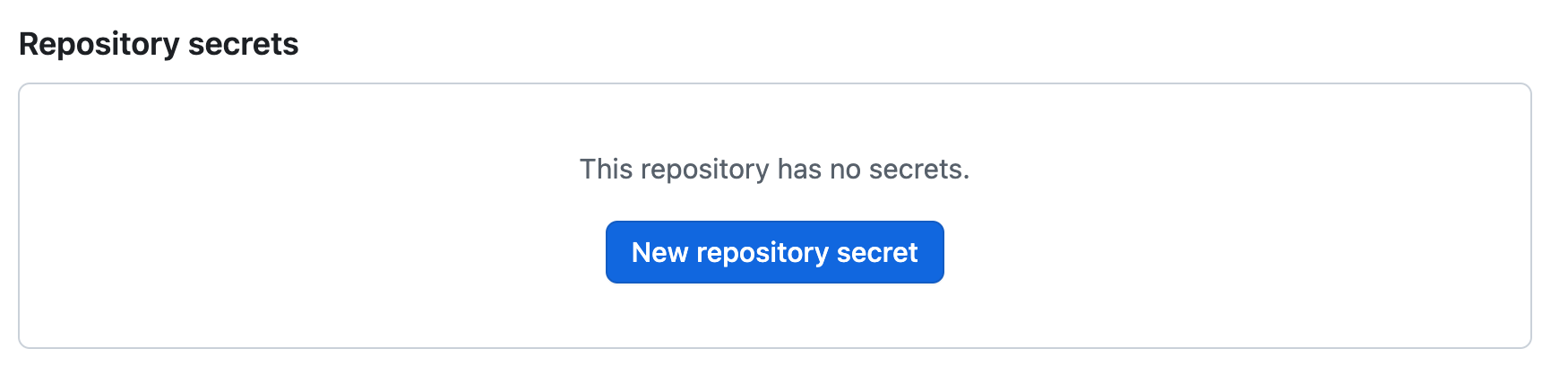
Add a name to the secret and paste password from your “Personal access token”.
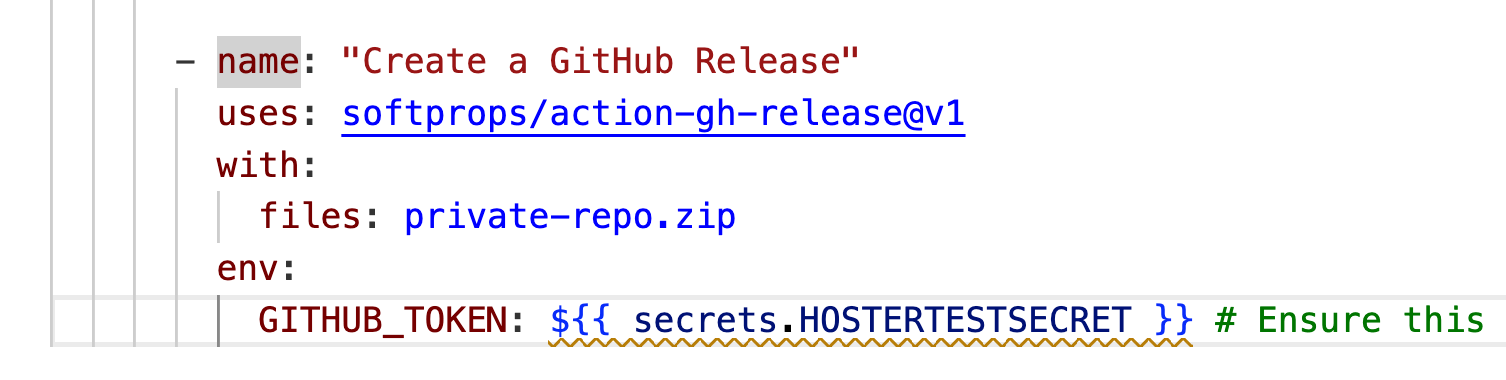
I usually call Secret name and Personal token the same to be easier to track.
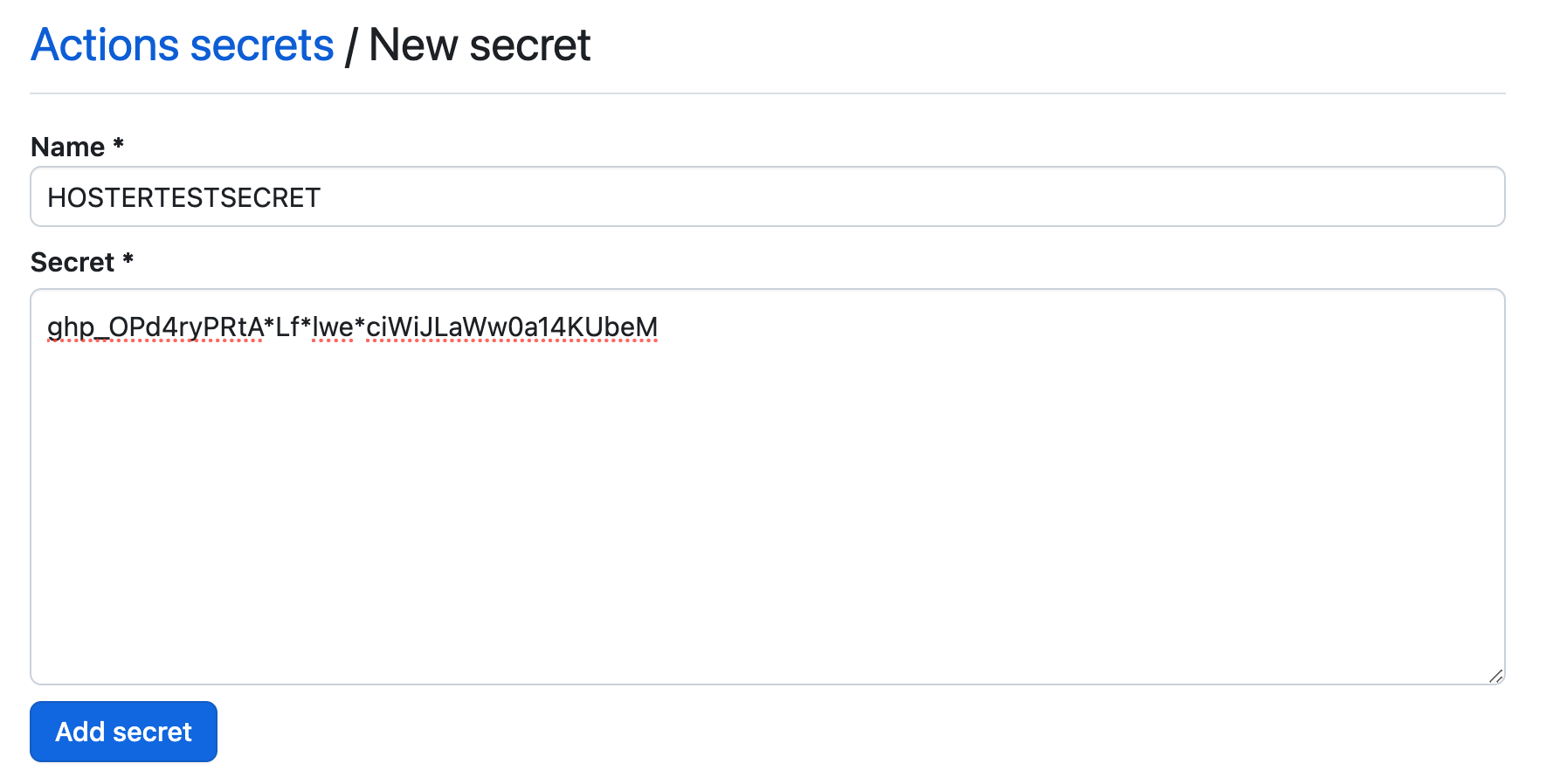
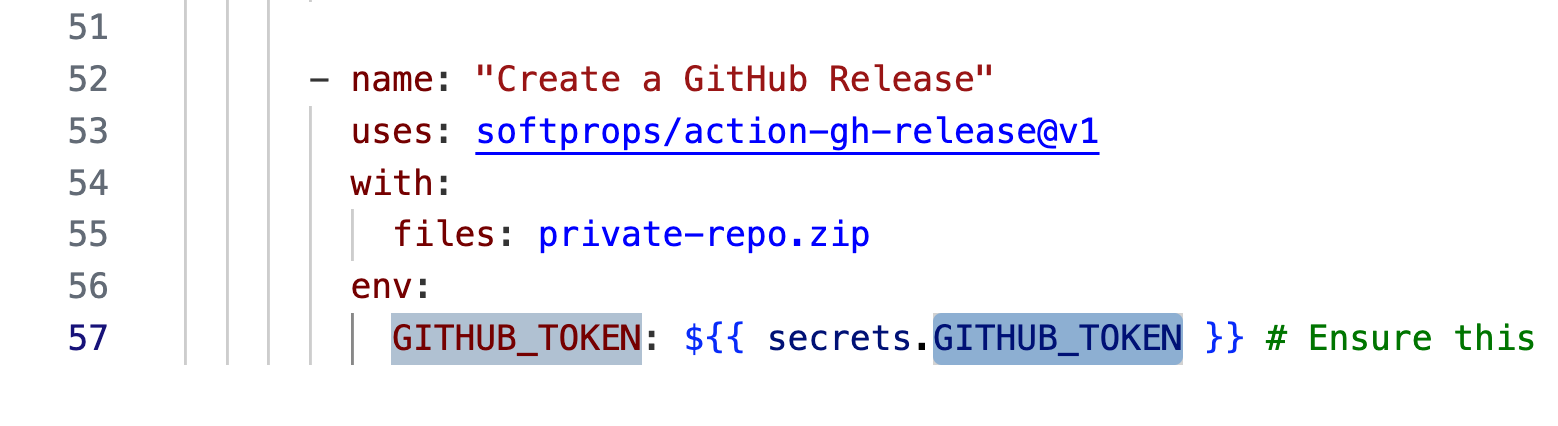
In release.yml replace “GITHUB\_TOKEN” to “YOUR\_SECRET\_NAME”
### Step 6: Deploy and Test Your Plugin
To trigger the release create a new tag same as version number. 0.0.1, 0.0.2 …
Once tag is submitted it will trigger Github action that will create release zip.
### Public Repository
#### Fetch Github releases
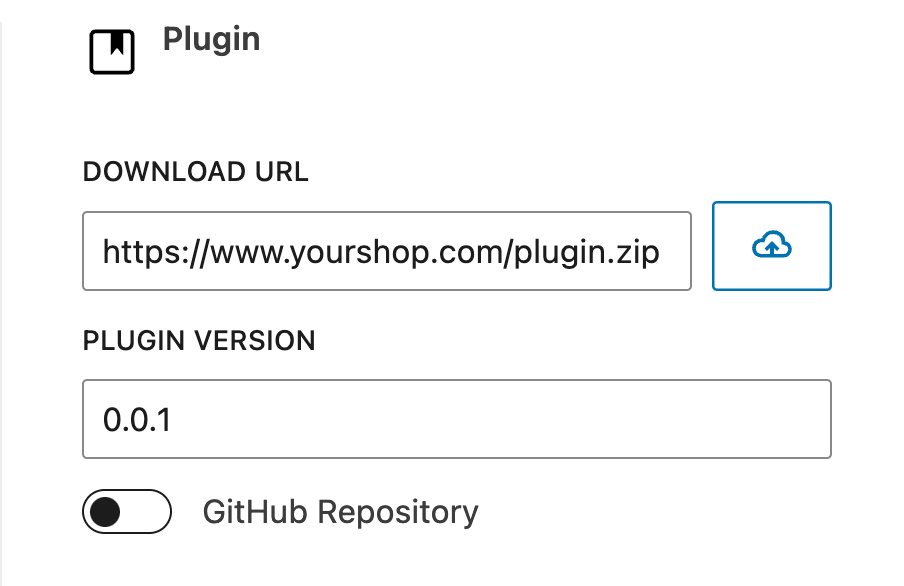
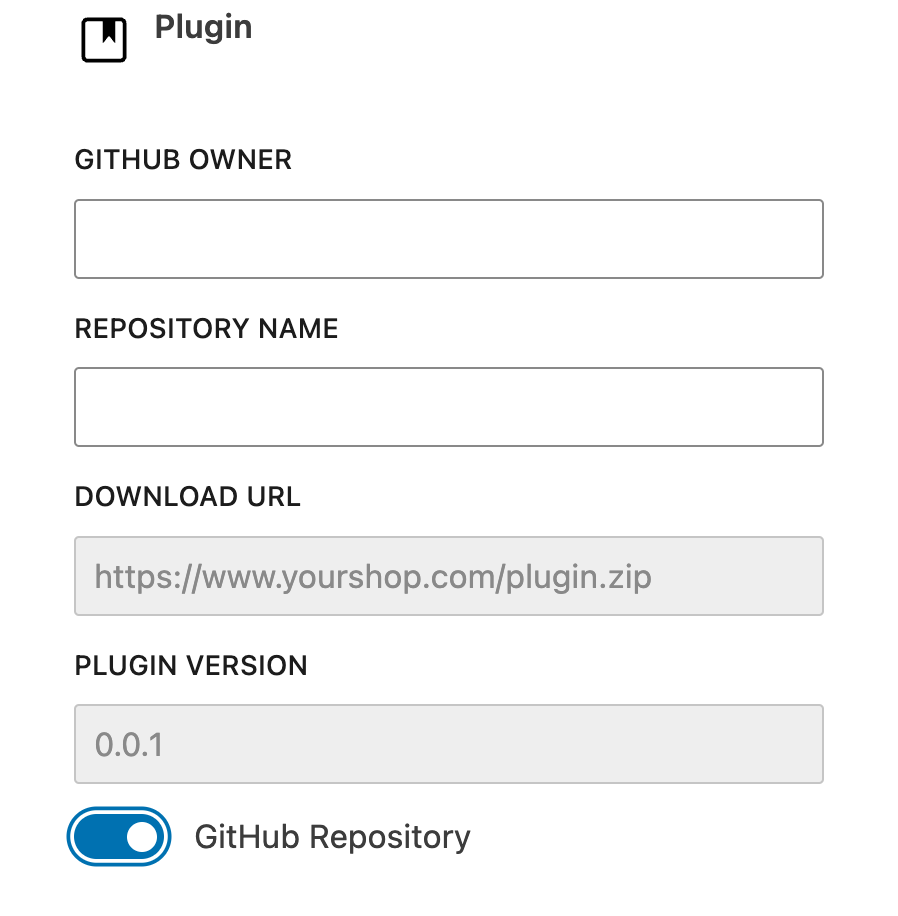
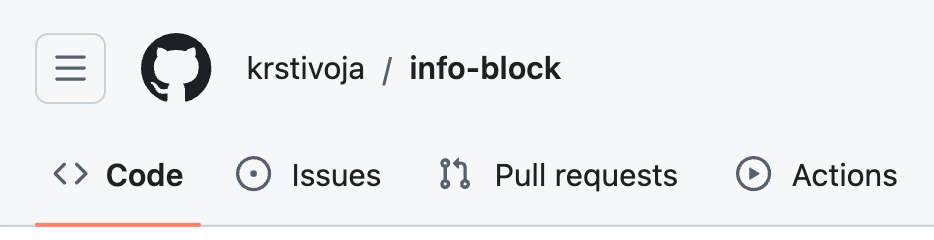
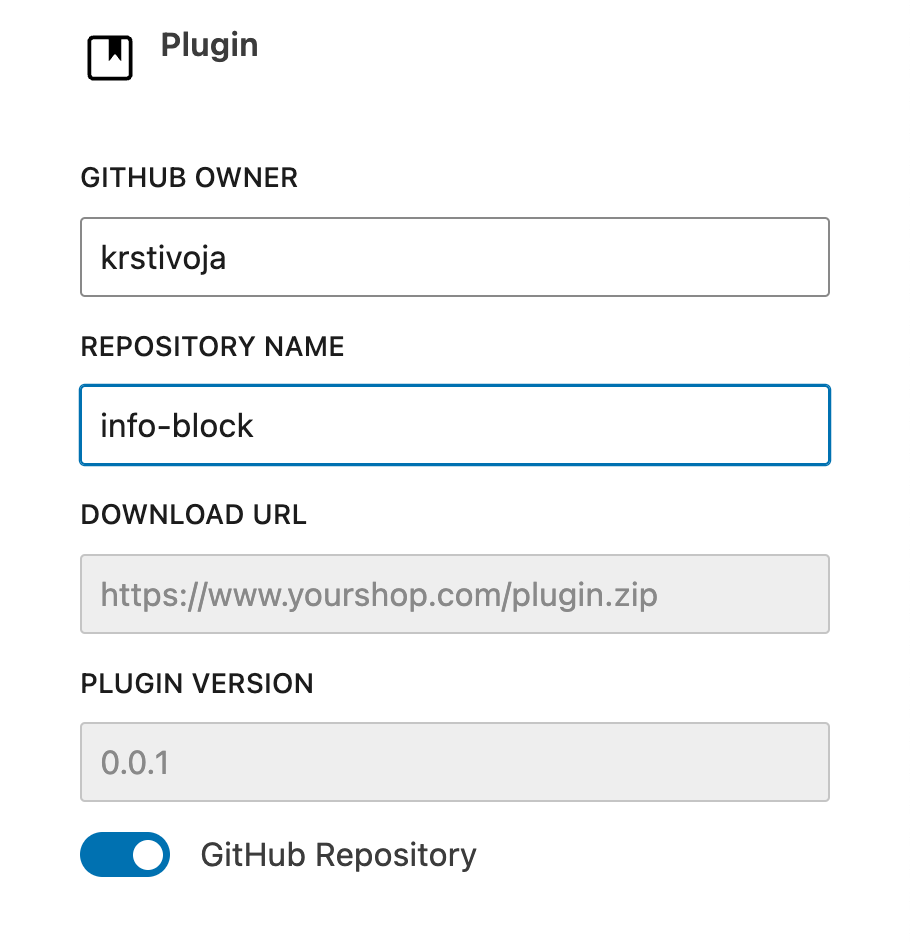
Switch from media library to GitHub Repository by toggling on “**GitHub Repository**“
<div class="wp-block-columns is-layout-flex wp-container-core-columns-is-layout-28f84493 wp-block-columns-is-layout-flex"><div class="wp-block-column is-layout-flow wp-block-column-is-layout-flow">
</div><div class="wp-block-column is-layout-flow wp-block-column-is-layout-flow">
</div></div><div class="wp-block-columns is-layout-flex wp-container-core-columns-is-layout-28f84493 wp-block-columns-is-layout-flex"><div class="wp-block-column is-layout-flow wp-block-column-is-layout-flow">
</div><div class="wp-block-column is-layout-flow wp-block-column-is-layout-flow">

</div></div>**Monitor automatic updates:**
- With each new tag pushed to GitHub, the workflow triggers the build and release processes.
- Self-Hoster detects the new release and automatically fetches updates, allowing users to update their installed plugin through the WordPress dashboard.
### Connect GitHub Account
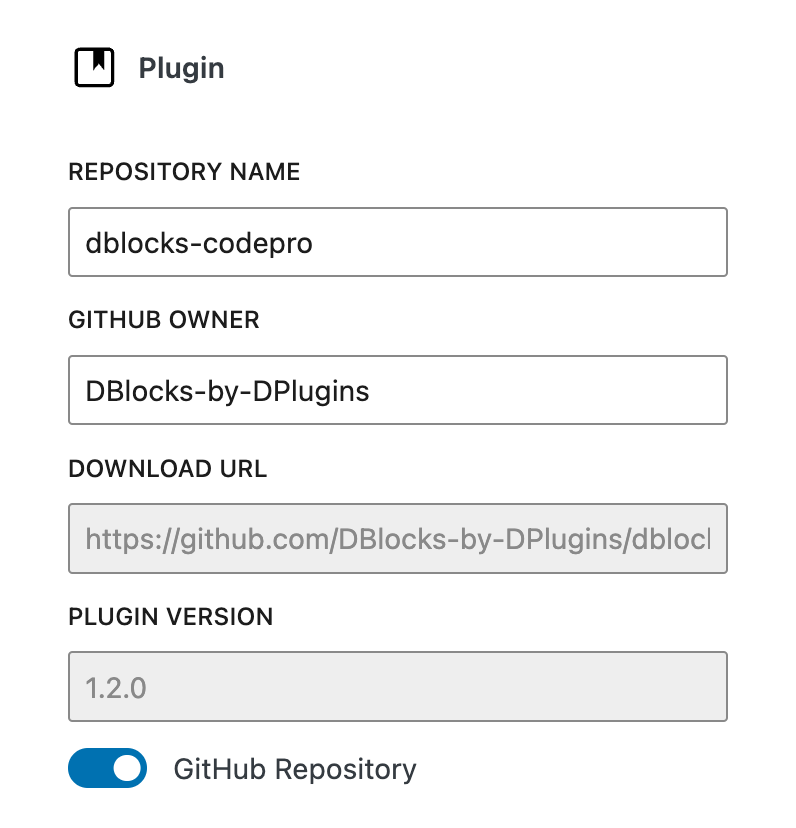
**Info:** Connecting GitHub Account gives you two benefits
• Connecting GitHub Account gives you two benefits
• You will not need to type repository. You will get dropdown list.
<div class="wp-block-columns is-layout-flex wp-container-core-columns-is-layout-28f84493 wp-block-columns-is-layout-flex"><div class="wp-block-column is-layout-flow wp-block-column-is-layout-flow">
#### Not connected
</div><div class="wp-block-column is-layout-flow wp-block-column-is-layout-flow">
#### Connected
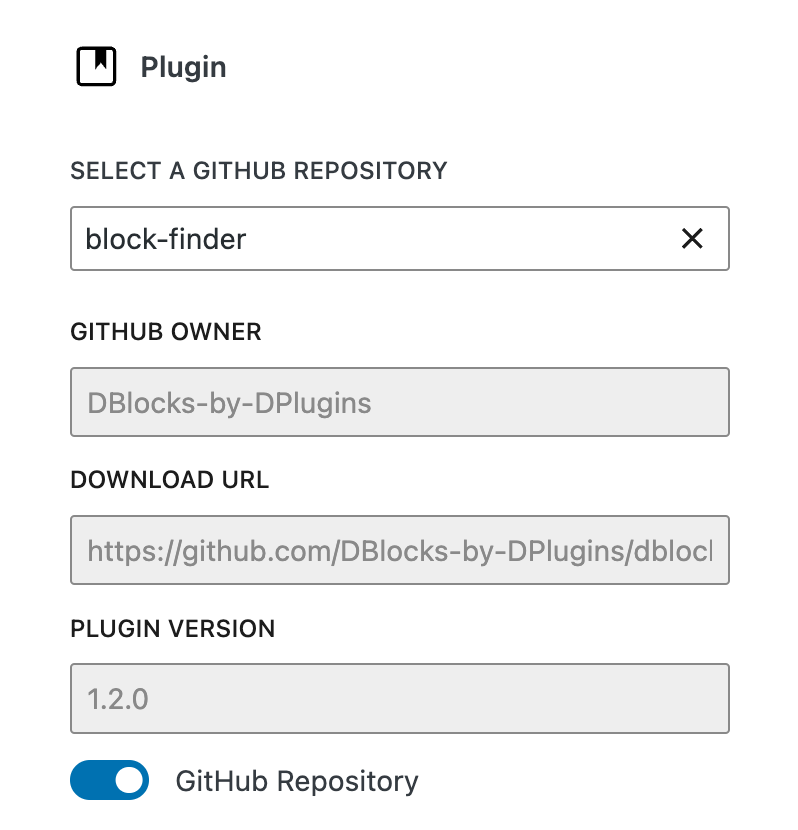
**With connected account you can fetch public and private repositories**
</div></div>
#### To connect the account you will need to do 3 steps.
1. Open GitHub Settings page
2. Create GutHub App
3. Grand permissions
<video controls="" height="1080" muted="" playsinline="" src="https://docs.dplugins.com/self-hoster/wp-content/uploads/sites/3/2024/07/GitHub-Connect-Accout.mp4" style="aspect-ratio: 1920 / 1080;" width="1920"></video>
### Private Repository
Once account is connected and that is a mandatory step you will be able to choose and host plugins updates from Public and Private repositories.